What the difference tells you
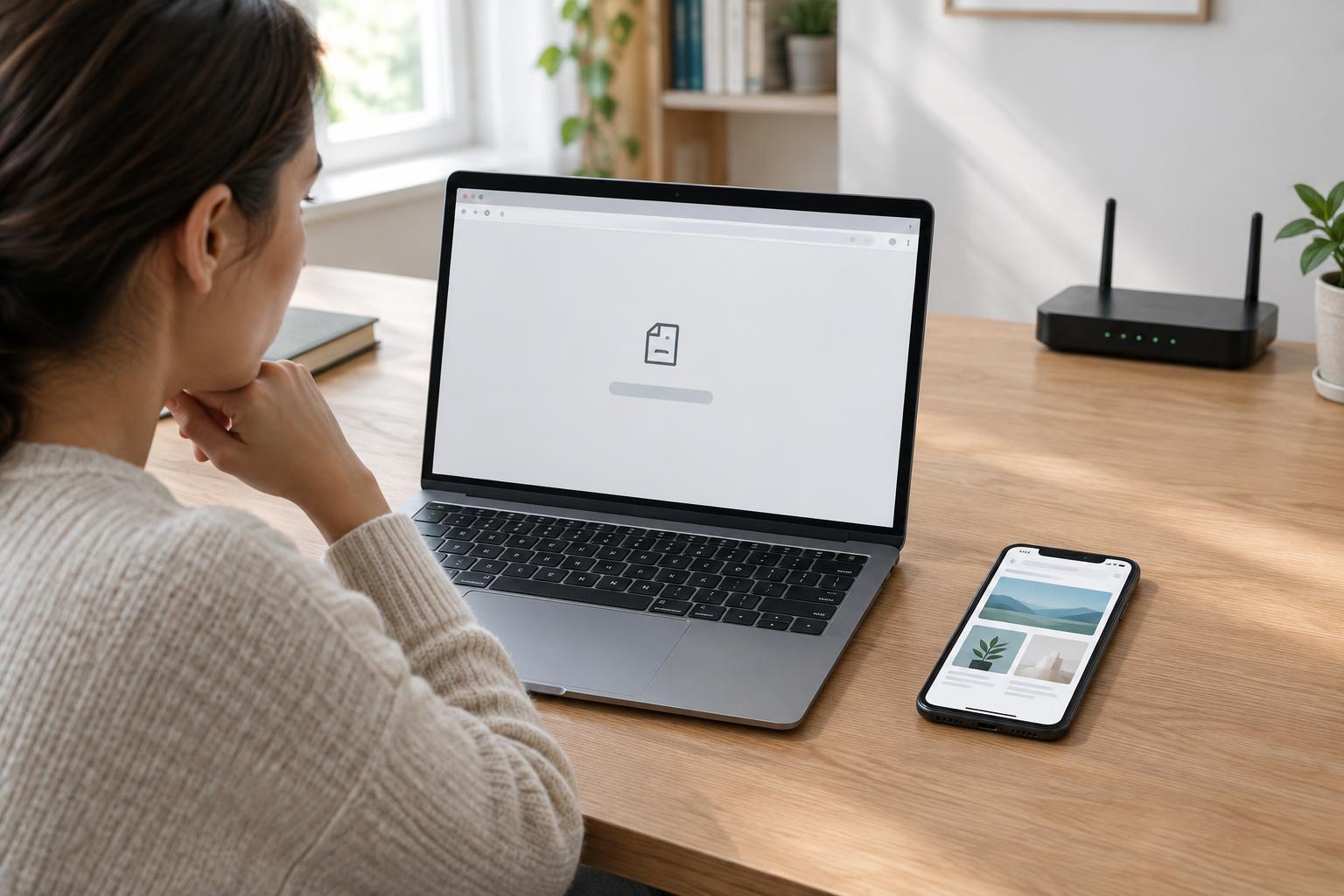
A phone on mobile data and the same phone on home Wi-Fi usually reach a website through different networks. They may also use different DNS resolvers, which translate a domain name into an address. If a site works on mobile data, the site is reachable by at least one route, but that does not tell you which part of the home connection is failing.
Start by confirming the comparison. Turn Wi-Fi off on the phone, open the exact same web address on mobile data, then turn Wi-Fi back on and try again. Check whether other websites work on home Wi-Fi and whether another device on that Wi-Fi can open the affected site. These simple tests separate a device-specific problem from one that appears to affect the whole home network.
Notice exactly how the site fails
The browser’s error is more useful than a general report that the site is “down.” A message about finding the server name may point toward DNS. A connection timeout can suggest that an address was found but the connection did not complete. A certificate warning, login page or unexpected redirect calls for a different investigation. Do not bypass a certificate warning or enter credentials on a page you did not expect.
Also check whether the problem affects the domain’s main address, a subdomain, or both. For example, example.com and www.example.com can have different DNS records. Copy the address rather than retyping it so that both network tests use the same name and path. If only one saved bookmark fails, try opening the site’s main address directly.
Rule out device and home-network basics
If only one device fails on Wi-Fi, restart its browser and try a private browsing window. An extension, stored redirect or local setting may be involved. You can also disconnect and reconnect to Wi-Fi. If the device uses a VPN, proxy, custom DNS setting or filtering app, note its current setting and, if appropriate, briefly test without it. Restore any protection you normally need after the test.
If every device on home Wi-Fi fails to reach the same site, restart the router using its normal power or management controls, then allow it time to reconnect. A restart can clear a temporary router fault, but it does not explain a problem that repeatedly returns. Avoid a factory reset as an early step: it can erase connection and Wi-Fi settings.
Try another browser or device before changing router settings. If other sites also fail, troubleshoot the home internet connection more broadly. If only one site fails across all home devices, DNS, filtering or the route from your internet provider becomes more plausible.
Check whether DNS is the difference
Your router or internet provider may supply DNS resolvers to devices on home Wi-Fi, while mobile data uses different ones. A resolver might temporarily hold an outdated answer, fail to answer, or block a domain under a filtering policy. If your device offers a DNS lookup tool, compare the affected domain’s answers on home Wi-Fi and mobile data. Different answers are a clue, not automatic proof of an error: some websites intentionally return different addresses to different networks.
A careful test is to temporarily select another trusted DNS resolver on one device and retry the site. Record the original setting first so you can restore it. If the site then works, investigate the home resolver or its filtering settings rather than immediately changing every device. Clearing a device’s DNS cache may help after a DNS change, but it will not fix a router that keeps supplying an unsuitable answer.
If you manage the domain, inspect its relevant A, AAAA and CNAME records in your DNS management panel. Check that the intended hostname exists and points where you expect. DNS changes may take time to appear through caching, so repeated tests made through different resolvers can show different results for a while.
Consider IPv6, filtering and the next step
A website may have both IPv4 and IPv6 addresses. Home Wi-Fi and mobile data can prefer different connection paths, so a faulty IPv6 path or an incorrect AAAA record can affect one network more than the other. If you administer the site, test both address types and review the server configuration before changing DNS records. For a visitor, noting that the issue happens only on one network is more useful than disabling IPv6 without a plan.
Home routers may also apply parental controls, security filtering or device-specific rules. Check those settings if you control the network, especially when the browser shows a block page. If the site still fails on every home device after basic checks, contact your internet provider or the site operator as appropriate. Share the exact hostname, the error message, when the failure occurs and the results of your network tests—but never passwords, router admin credentials or private account details.